Tiny Desk AI Prompt: Two Starting Points for Your Video
A useful Tiny Desk AI prompt names the lead performer, gives every musician a fixed place, describes the room and asks for a clear action. Use the examples below in your own video tool, or choose our prepared performance if you would rather skip prompt writing.
By Tiny Desk AI · Updated October 31, 2026
Do you need a prompt or a prepared template?
Use a general-purpose video tool when you want to choose the room, cast, camera movement and soundtrack yourself. Check whether it accepts a portrait, a motion-reference clip or both; a text prompt cannot supply an input mode the tool does not support.
Tiny Desk AI at aitiny-desk.com takes a different route: upload one portrait and use our prepared solo performance. There is no custom prompt field, reference-video upload or five-person casting control here. The photo-to-video tutorial explains that workflow.
Two Tiny Desk AI prompt examples to copy
These are original drafting examples for DIY tools, not model-tested recipes. They have not been used to generate our public sample. Start with the input mode your tool actually supports and adapt the instructions to its controls.
Portrait-to-video prompt: one lead singer
Use the supplied adult portrait as the identity reference for the lead singer. Create an original intimate office concert: a seated singer beside a wooden desk, a microphone on a stand, a keyboard player and a saxophone player behind them, shelves of books and warm lamps. Keep each person in the same role and position. In one continuous medium shot, the lead takes a breath, sings a short phrase, smiles and glances toward the band. Keep the face visible and the microphone in front of the singer. Use restrained natural movement and a steady camera. No readable text, logos or extra people. Compose vertically with the lead’s face and hands inside the frame.
Replace the room, outfit or supporting instruments to suit your scene. Keep the lead and one camera action clear before adding more movement.
Reference-video prompt: keep the staging clear
Use the supplied portrait for the adult lead singer’s appearance. Use my supplied reference video for camera framing, movement and shot timing. Place the lead beside the desk microphone, with fictional adult supporting musicians in fixed positions. Keep the same lead identity and outfit throughout. Follow the reference camera movement while keeping faces, microphones, instruments and hands visually separate. Use a warm, book-filled office setting. Keep the supporting cast consistent between shots. Do not add captions, readable signs or logos.
Use this only in a tool that accepts both image and video references. Supply reference footage you are allowed to use. Describe which performer is the lead if several people appear.
Plan a short desk-concert sequence
For a DIY sequence, give each shot one job. This is an example plan for an original performance; it does not describe a frame-by-frame remake of the concert meme.
- Introduce the band. A medium or wider view establishes the desk, singer and supporting players. Keep their positions easy to identify.
- Give the lead a moment. Use a closer view for a short vocal phrase and a smile. Avoid asking for a fast turn, large gesture and moving camera at once.
- Finish with the musicians. Cut to an instrument or return to the band. Keep the lead’s outfit and the room consistent with the previous shots.
Kapwing’s DIY walkthrough uses separately generated scenes and an editing template. Dreamina’s guide also discusses fixed roles and office-concert staging. These are alternative workflows, not features of this generator.
What to change when a DIY result misses the idea
- The face drifts during movement
- Try a sharper, front-facing reference and simpler head movement. Review the moving face, not just the opening frame; a prompt cannot guarantee likeness.
- The lead and a bandmate swap roles
- Name one lead, assign each supporting player an instrument and position, and remove conflicting descriptions. If necessary, simplify the shot to fewer visible performers.
- The room looks like a large stage
- Describe a small office, nearby shelves and musicians close to the desk. Remove arena lights, a large audience or wide-stage language.
- The song or lip movement is different
- Check the tool’s audio and reference controls. Writing a song title in a visual prompt does not establish the recording or exact lip-sync.
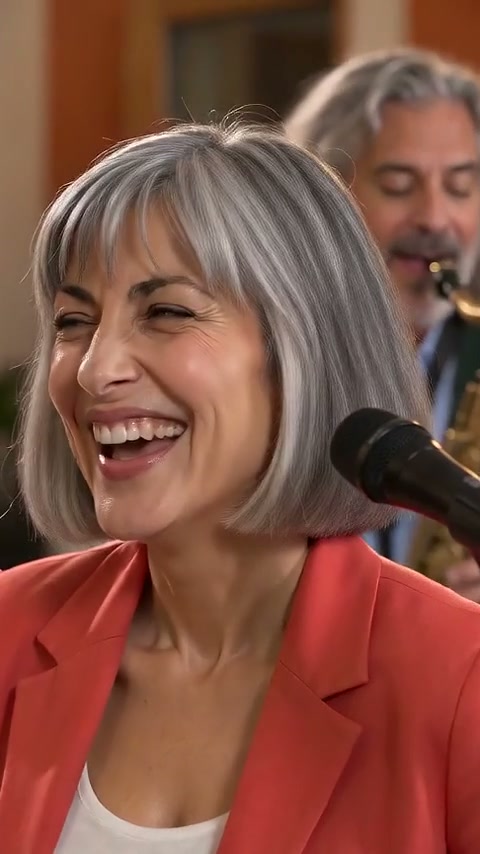 Watch our complete 19-second sample →See the input portrait, movement and generated music from our prepared workflow.
Will an Outstanding Tiny Desk AI prompt recreate the original sound?
The familiar meme refers to Charlie Wilson’s performance of “Outstanding.” An office-concert description alone does not reproduce that performance, its recording or its exact cuts. Our generator makes its own music and staging. Read the original performance and coaches trend explained before choosing which version you want.
Prompt questions
- Are the prompts free?
- Yes. You can read and copy them without signing in. Your chosen video tool may charge to generate a clip. Personalized generation on this site requires a purchase; see what is free and what is paid.
- Can I use these in CapCut?
- Use them only in a feature that accepts written video instructions and the relevant references. An editing template that arranges existing clips is a different workflow. Check the inputs of the specific template you open.
- Can I paste a prompt into this generator?
- No. Here you choose a portrait and use the prepared scene. For a custom cast or camera plan, use a tool with those controls.
Prefer to bring just your photo?
Watch the sample with sound, check the price, then choose your portrait. The room, band and music are prepared for you.
Create without writing a prompt